


How to Reduce Noise in Corona Renderer - Corona Denoising
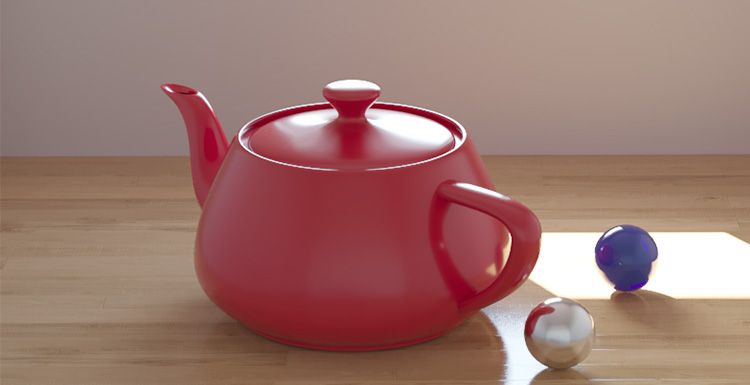
Subtle high-frequency noise is normal for the Corona renderer, especially at the beginning of the rendering process, where bright noise and dark noise are unavoidable. To eliminate them, only increasing the number of photons, increasing the subdivision value of materials and lights, and spending a lot of time can be eliminated.
So how do you reduce noise in Corona Renderer? One option is to upgrade your hardware, such as a faster CPU or more memory. This method works, but it also increases your overall cost. Another option is to rely on software algorithms that can clean up noise more efficiently. These noise-reduction tools remove grain in a smarter, more affordable way.
The denoising feature was introduced in Corona 1.4, a feature that analyzes noise in 3D space and subtly reduces noise while not producing spots, maintaining sharp edges and texture details. This not only improves quality, but also reduces rendering time by 50% to 70%.
How to Use Denoising Feature in Corana Render?
As the leading CPU & GPU render farm service provider, Fox Renderfarm will tell you how to reduce noise in Corona render step by step.
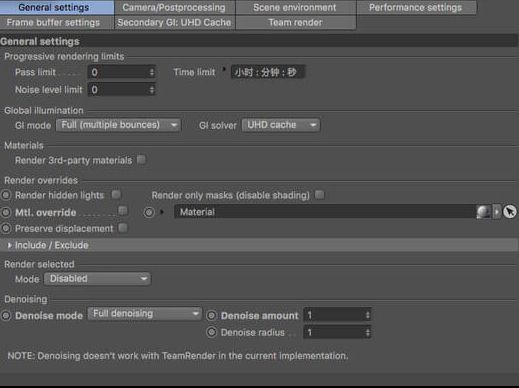
Step 1. Enable denoising. Click "Render Settings - General Settings - Denoising", in Denoising Mode you can choose None, Only Remove Firelies, Full Denoising, or Gather Data For Later.


For example, make a scene that uses Corona's own sky, sun and camera objects. The window object PORT seals the window outside, using Portal Matrial.
Then, open the Render Settings panel and set the Denoising Mode to Full Denoising.
Step 2. Start the VFB rendering window, click to render.
This is a screenshot of PASSES TATAL = 4, there is a lot of noise in the scene.

This is a screenshot of PASSES TATAL =25, and there is a lot less noise in the scene. My machine used 126 seconds, this speed depends on your CPU core and clock speed. The better the hardware, the faster the speed.

Step 3. Click to pause the rendering and start the denoising program. After the process, the noise is removed a lot.

Step 4. To make the image a bit brighter, go to the POST panel of the VFB window, adjust the exposure and highlight limit, and adjust the correct exposure.

The current level of denoising is 0.65 by default. Manually adjust the noise reduction to a level of 1, to see if the noise reduction works better.

The below model material had a lot of visible noise, but after following the steps above, Corona used 16 sampling points, and once PASSES TOTAL reached 10, the noise was significantly reduced.


Official Demo
Next, we will show two sets of models comparing before and after noise reduction. By adjusting the denoise radius and amount, you can observe different noise reduction effects.
For the first set, we set both the denoise radius and amount to 1, and the model is very clear with rich details after noise reduction.


For the second set, we set the denoise radius to 4 and the amount to 1. While noise is reduced, the image becomes blurry and loses many details.


When using Corona Renderer in C4D, you should first open the render settings panel and enable FULL DENOISING. If you render using the VFB window, the denoising function will start automatically whenever you manually stop the render. However, if you use an interactive render window, manually pausing the render will not trigger the denoising program, so the noise will remain until the render is fully completed.
Summary
In summary, if you want to reduce noise in Corona Renderer, simply adjust sampling points, PASSES TOTAL, and denoising settings such as radius and amount. Balancing these parameters helps maintain image clarity while minimizing grain. For faster rendering and smooth results, you can also consider using FoxRenderFarm, which supports most popular 3D software, renderers and plugins incluindo Corona, and it offers a free $25 trial for new users who sign up, so just give it a try!