


Arnold for Maya Tutorial: How to Render Wireframe
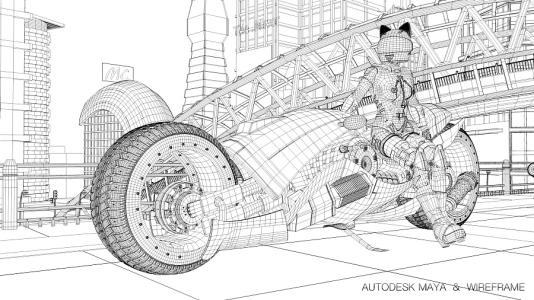
When making some work, we need to render some special effects, such as only showing the wireframe of the model. In this article, Fox Renderfarm, your best cloud rendering service provider, will show you how to use Arnold for Maya to render the mesh, show the model in wireframe or show the individual wireframe alone.
Arnold renderer
First, you need to modify the settings in the Arnold renderer, and then open the Hypershade to select the shader aiWireframe, the shader that implements the wireframe.

aiWireframe
Let's look at the properties of the aiWireframe shader, the detailed values: Edge Type is divided into Polygons, Triangles, Patches; Fill Color: This is the colour of the entity of the model itself. After testing, this node is connected to SurfaceMaterial for transparency and masking, but it has no effect, so, the node should be able to accept RGB information. About the LineColor the LineWidth, shown as below,

Settings of aiWriteframe
The setting of this material is used as backup content for later use. We use this node as transparency information, to link the rendered material transparency node. We add the basic Arnold shader aiStandarSurface to the model to be rendered, and we can choose to adjust the colour in the basic shader.
The key step is to connect the aiWriteframe shader we made earlier to the Opacity node of the basic shader.

aiWriteframe link transparent node
Next, we need to remove the Opaque node from the basic attributes of the model. A model can easily adjust the Opaque node in Arnold. But if there are many models, it will waste a lot of energy and time to adjust each model in turn.
In Maya, you can adjust multiple model attributes at the same time through the attribute bar.

Remove Opaque in the attribute
The method of batch adjustment of model attributes is in the AttributeSpreadSheet of GeneralEditors under windows. The detailed selection of the attributes of the model is to render the first AIOpaque in the Arnold window, and then click to enter 0. 0 is off and 1 is on here.

Modify model properties in bulk
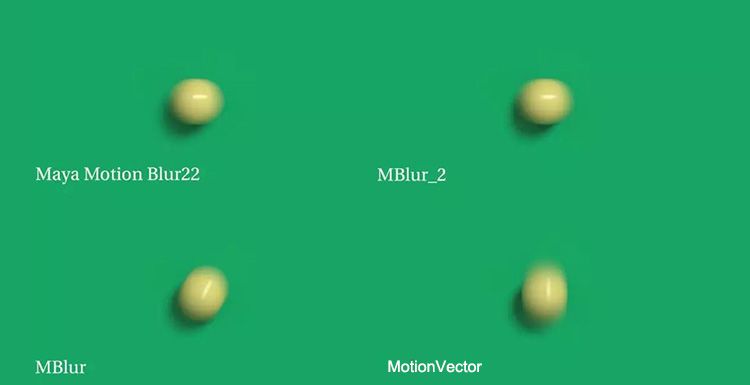
Let's take a look at the test results. The picture on the left is the rendered reb colour effect, and the one on the right is the effect with channels.

So, regarding the grid now that it can be displayed transparently, how to achieve a mask effect that blends transparency and opacity?
First, use the same method to make the first shader, and then use Maya’s most primitive basic shader: surfacesShader, this can control the masking effect very well, we use the made aiWireframe to link the Out Color of the surface shader so that we can achieve the transparency effect of the mask.

You can see the masked transparency effect below,

Basically, this is how it is made. Of course, you can also use this method to make other effects. Fox Renderfarm hopes it will be of some help to you. As you know, Fox Renderfarm is an excellent cloud rendering farm in the CG world, so if you need to find a render farm that can help you render Arnold or Maya faster, you can try Fox Renderfarm, which is offering a free $25 trial for new users who sign up!