


How to Add Motion Blur in After Effects for Smooth Animations
Designers and video creators often need scenes that feel smooth and natural. When objects move fast, your footage can look stiff, sharp, and unreal. Therefore, adding the right blur helps your visual appear lifelike and keeps the viewer engaged.
Motion blur in After Effects is a popular technique to add soft blur to moving items in a video. This effect can bring life and realism to animations and clips. Many beginners struggle because the tools seem complex or hard to understand. Thus, this article will guide you on easy ways to apply motion blur in After Effects.
>> Related: Top 8 After Effects Render Farm Recommended of 2025
Part 1. What is Motion Blur?
Motion blur is basically the effect that makes moving objects appear streaked or smeared visually. It occurs when a camera or object moves during an exposure while the sensor is recording light. In photography, slow shutter speeds often create motion blur in a moving subject naturally. Video and animation also use motion blur to make fast actions look smoother.

This effect blends frames together and reduces the choppy appearance in the video of graphics. Motion blur is often added intentionally to show speed and dynamic movement well. In video games, it helps schemes appear realistic, especially in racing or action. Human eyes also perceive motion blur, so visual media mimics this effect for realism. Besides, using motion blur correctly can enhance immersion without needing extra hardware resources.
Part 2. How to Add Motion Blur in After Effects
Upon adding motion blur in After Effects, you can make your animation look smooth. So, this section explains 4 simple methods to create an After Effects motion blur well:
Method 1. Enable the Motion Blur Switches on Layers
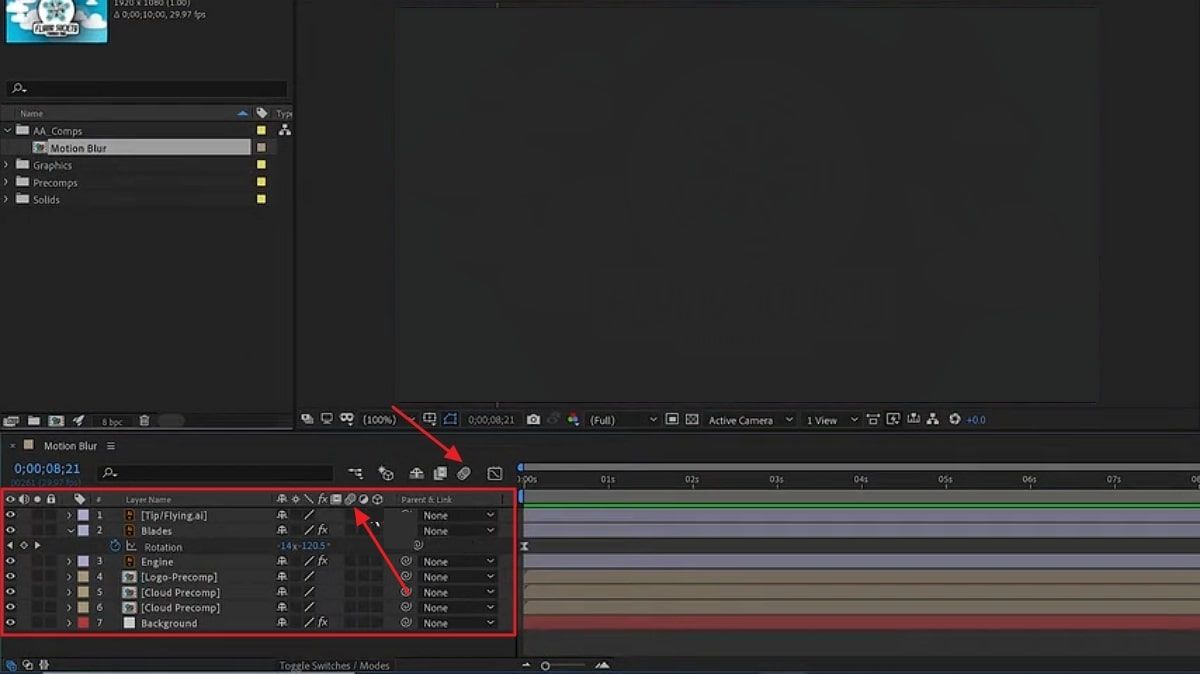
Enabling motion blur switches on layers tells After Effects which objects need blur. This switch activates blur based on the layer's movement, scale, or rotation changes. Besides, it helps fast animations look smooth by removing sharp or choppy frames. Using this feature, along with the main motion blur button in the composition, creates realistic streaks. Follow the instructions below to enable motion blur in After Effects:
Open your composition in After Effects and click the “Motion Blur” switch for the desired layer you want to enable it on. Next, click the “Enable Motion Blur” icon at the top of the timeline to enable it for the composition.
Method 2. Use the CC Force Motion Blur effect
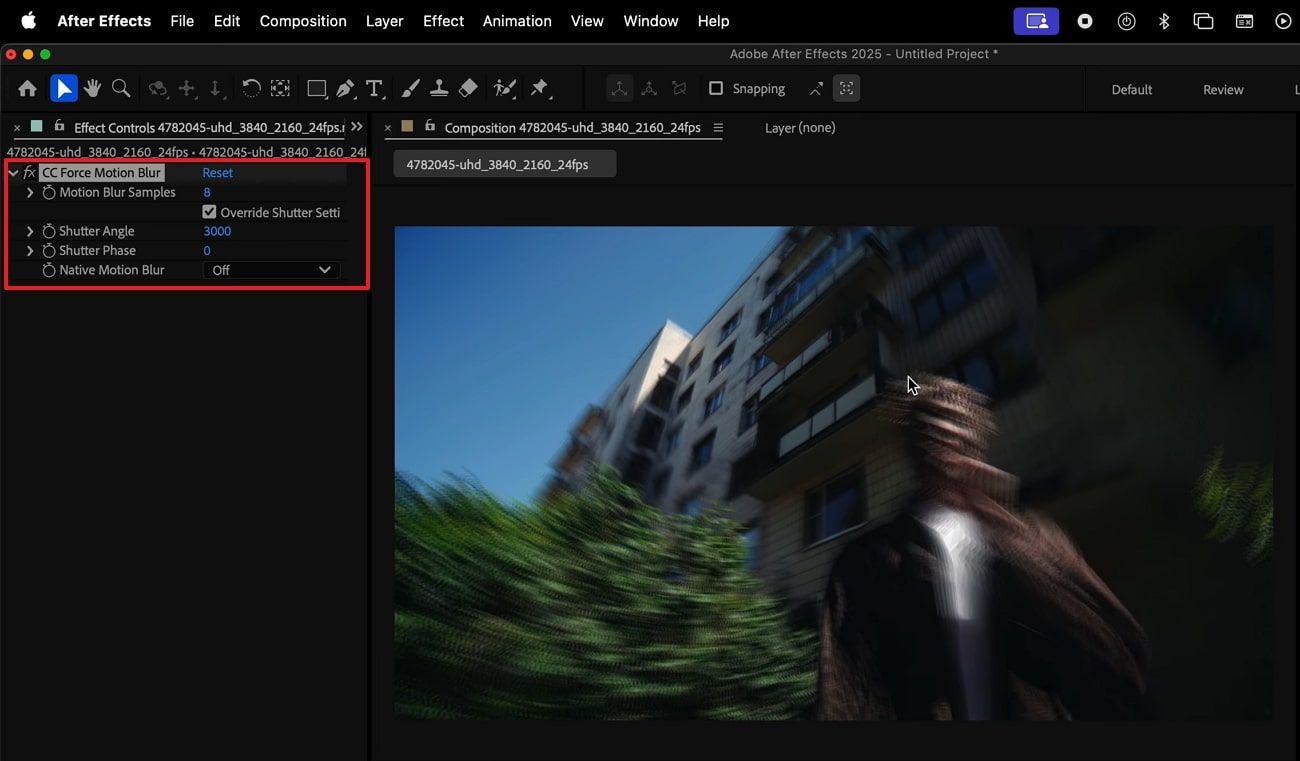
The CC Force Motion Blur effect in After Effects adds extra sub-frames to the layer. It blends these sub-frames, creating a smooth blur along moving objects in your composition. Plus, you can control blur intensity, quality, and shutter independently from global composition. Besides, it helps achieve realistic motion streaks on effects, precomps, and fast animations. Follow the steps below to use the CC Force motion blur effect:
Step 1. Go to the “Search bar” to search for “CC Force Motion Blur” and add it to the layer.

Step 2. In the Effect Controls panel, enable “Override Shutter Settings” and then increase the “Shutter Angle” value to boost the blur strength. Moreover, adjust the other settings to make motion blur according to your requirements.
Method 3. Use Pixel Motion Blur
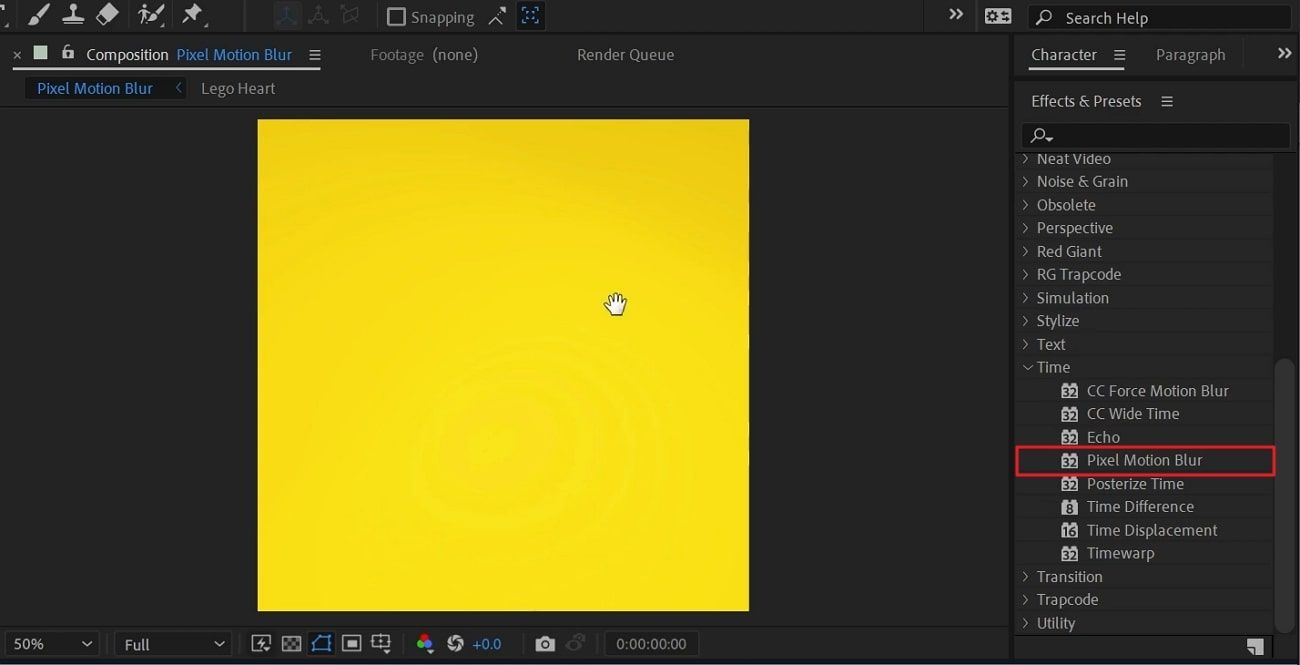
It is an effect that analyzes pixel movement within a layer to create realistic blur trails. Pixel Motion Blur uses pixel velocity instead of only layer position or rotation to generate a more natural blur. This method produces a realistic motion blur effect in After Effects, especially for fast animations. Unlike standard layer blur, it evaluates individual pixel shifts to improve realism. Thus, follow the guide below to use Pixel Motion Blur:
Step 1. Open the “Effects & Presets” panel and scroll to the “Time” category, then select “Pixel Motion Blur” from the list.
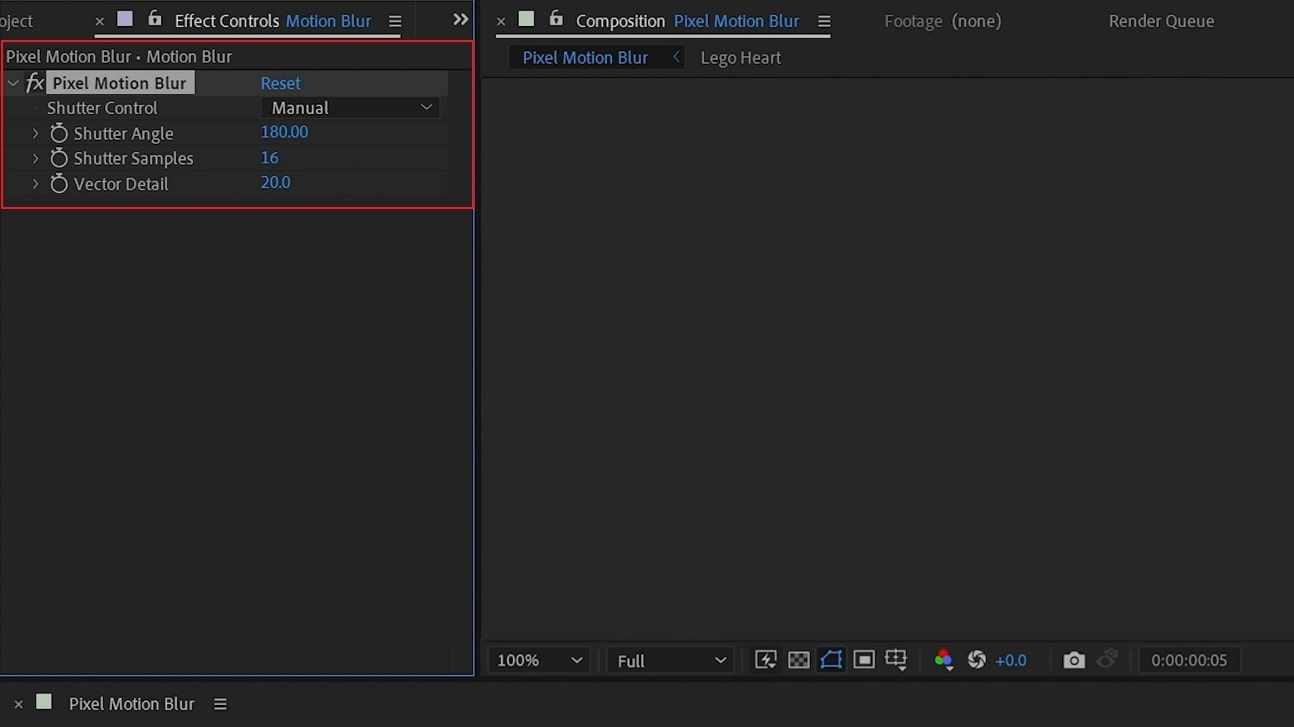
Step 2. Start by selecting the layer in your After Effects timeline. Here, you can manually customize your desired options to adjust blur motion.
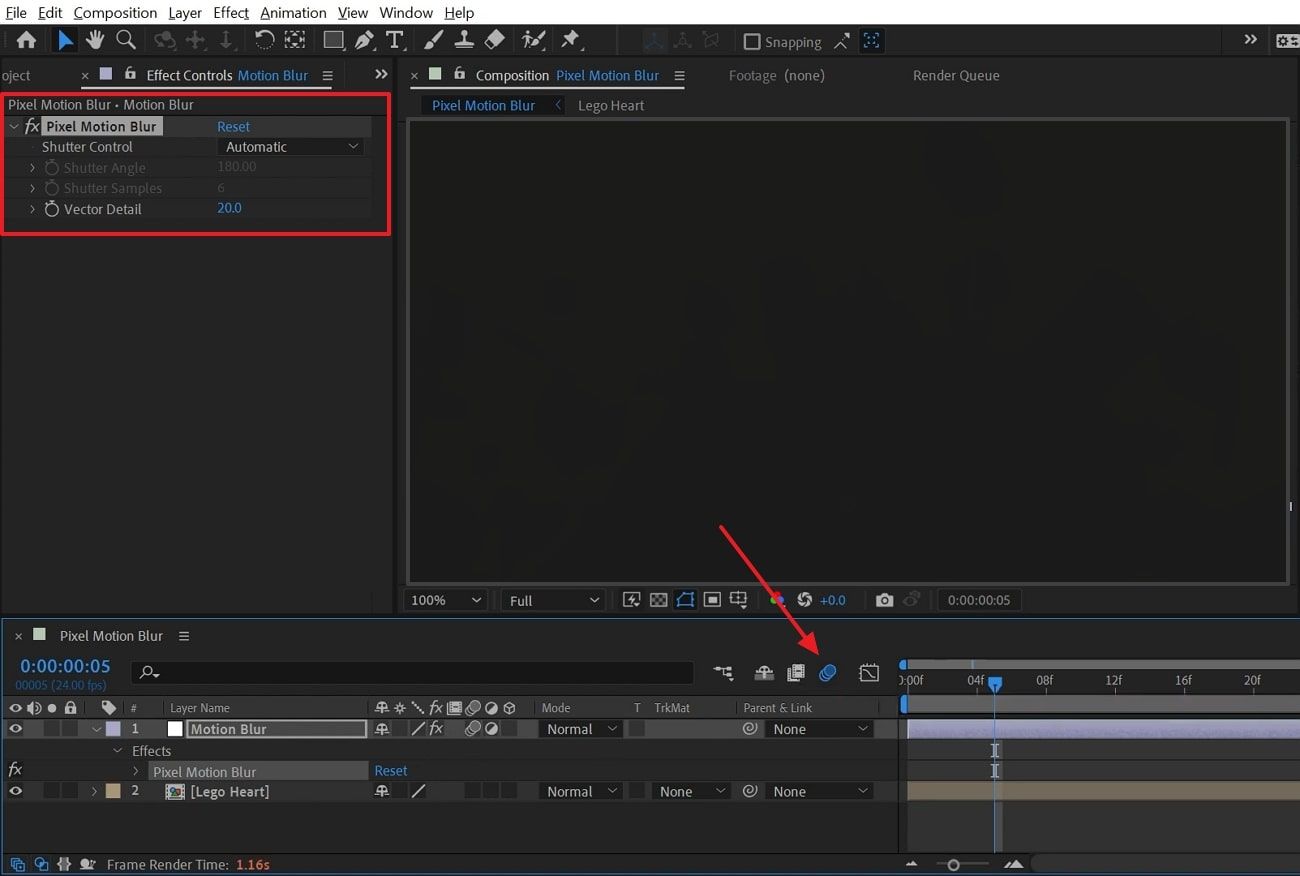
Step 3. After that, choose the “Automatic” option for the “Shutter Control” feature. Next, click the “Motion Blur” icon in the timeline to turn on motion blur for all layers.
Method 4. Fake Motion Blur with Gaussian/Fast Box Blur
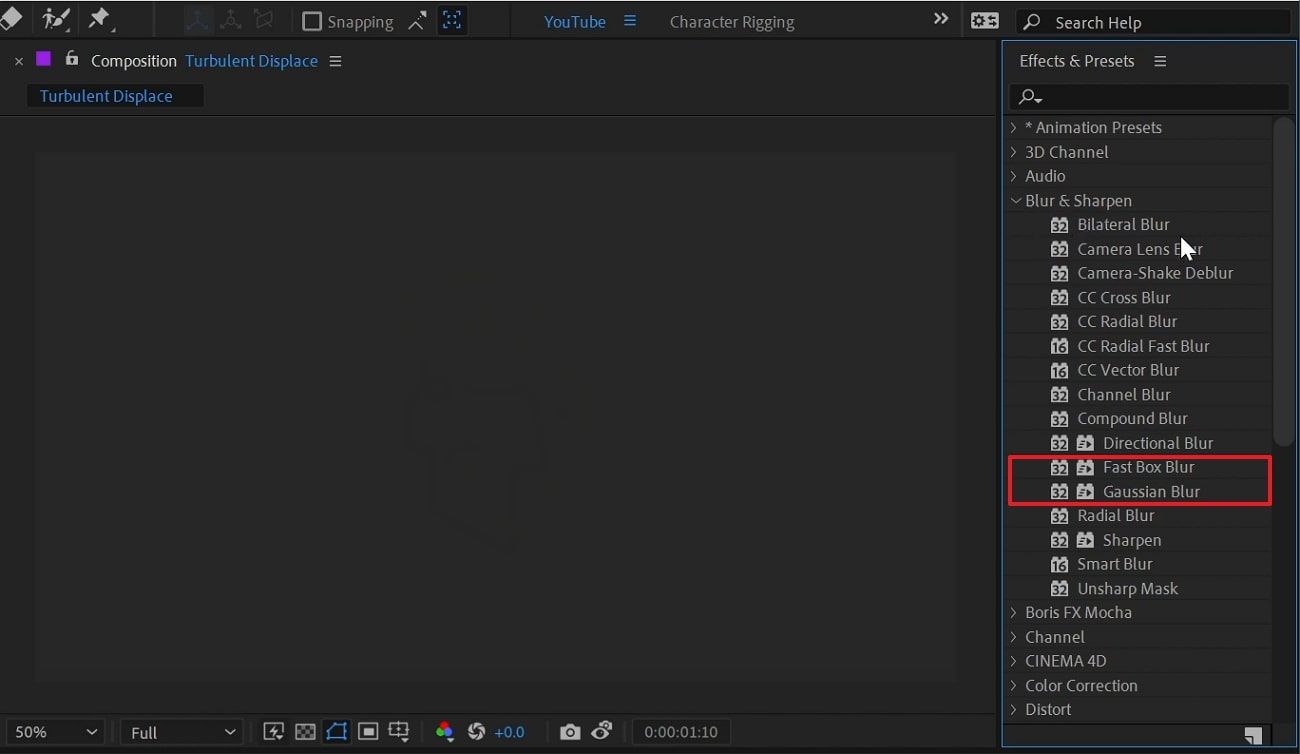
This method uses a simple blur effect to imitate movement on animated layers. Gaussian or fast box blur creates soft streaks that suggest speed and direction. These blurs avoid heavy calculations, offering predictable results and smoother rendering performance. In addition, this approach enhances After Effects motion blur by adding controlled softness during movement. Hence, follow the steps below to use fake motion blur with Gaussian:
Step 1. Go to the “Effects & Presets” panel and search for “Gaussian Blur/Fast Box Blur” under the “Blur & Sharpen” category.
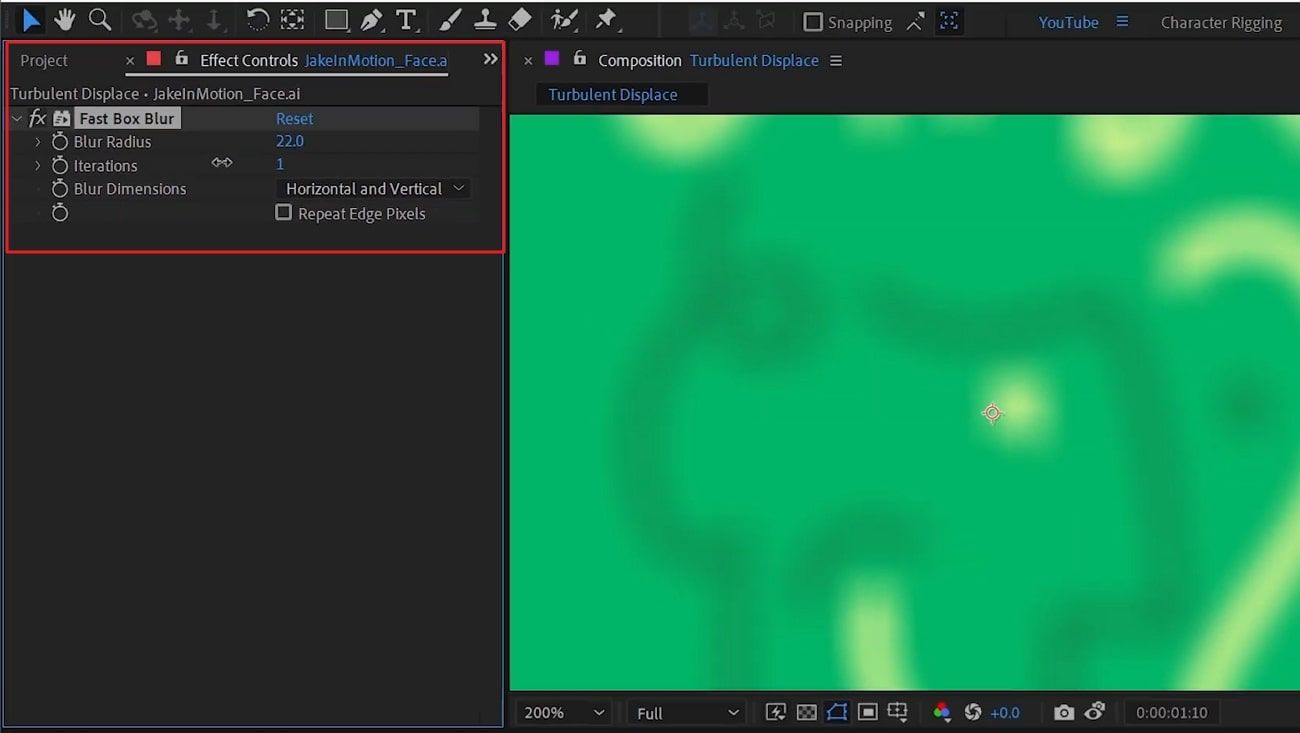
Step 2. Open “Effects Controls” and select the layer you want to apply “Fast Box Blur” to. Now you can customize your desired options to make the blur motion smooth.
Part 3. How to Change Motion Blur Settings in After Effects
Changing motion blur settings helps shape movement intensity and smoothness across scenes. These controls let you adjust visual clarity while keeping motion feeling natural and balanced. They also help match graphic elements with real camera footage for style.
Fine-tuning these options supports cleaner frames when working with layered animations. Overall, motion blur After Effects adjustments improve realism while managing rendering demands. Go through the guide to change the motion blur settings:
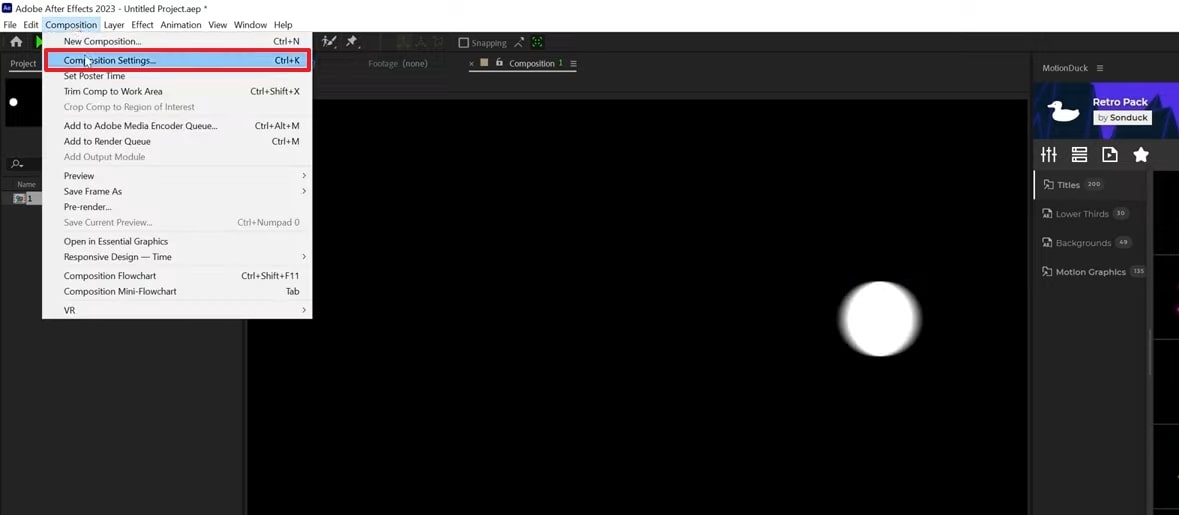
Step 1. Click the “Composition” menu and choose “Composition Settings” to adjust blur controls.
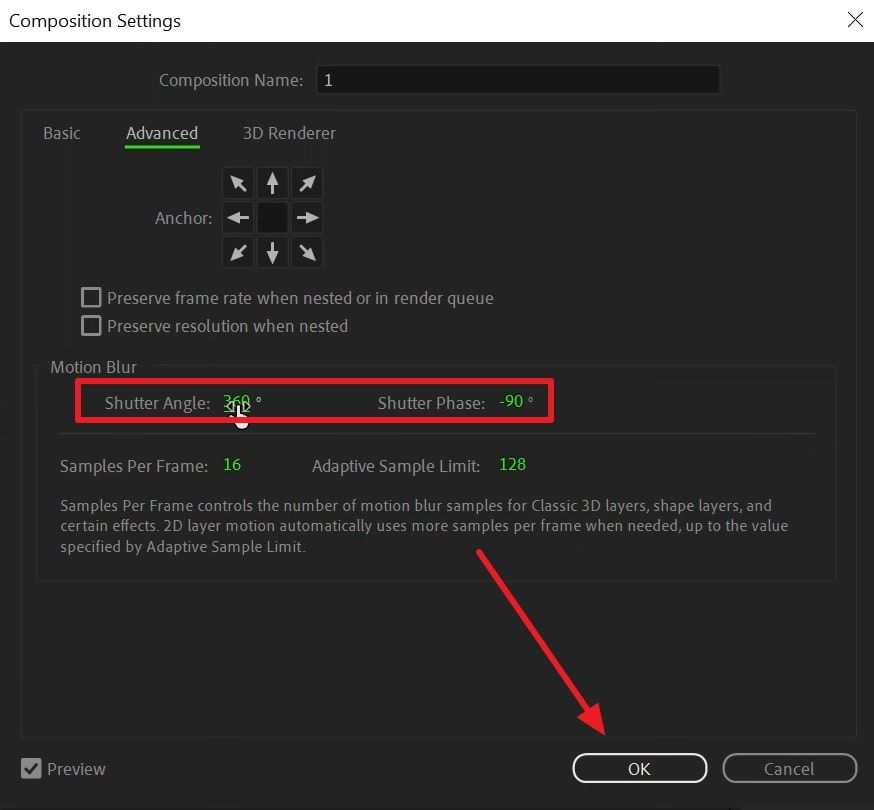
Step 2. In the upcoming panel, adjust the “Shutter Angle” and “Shutter Phase” values to change motion blur. Next, click the “OK” button to change the motion blur in After Effects.
Part 4. How to Fix Motion Blur Not Working in After Effects
When motion blur stops showing properly, it can make your video look stiff and unnatural. Here, we share simple fixes to help motion blur work smoothly in After Effects:
Common Issues of Motion Blur Not Working in After Effects
Motion blur may stop working for several common reasons that confuse beginners. Many users on forums like Reddit usually face these exact small issues:
1. Layer Switch: A Reddit user reported enabling motion blur on the layer but forgetting the timeline switch. Nothing showed because only one switch was active at the time.
2. Static Footage: Another Reddit user expected blur on a still clip, but motion blur needs movement. AE only applies blur if the position or rotation changes over time.
3. 3D Renderer Conflict: Some Adobe Community users found that setting the 3D Renderer to Cinema 4D disabled motion blur. Layers lost blur automatically until the renderer setting was changed.
4. Subtle Blur: A Reddit user noticed motion blur seemed invisible at high frame rates or small movements. Shutter angle or sample values being too low caused the effect to appear weak.
Quick Solutions to Fix Motion Blur Not Working in After Effects
In case motion blur still doesn’t appear, simple adjustments can quickly fix the problem. Thus, these easy ways help the program show motion blur clearly on moving layers:
1. Enable Timeline: Turn on the motion blur icon for each moving layer in your timeline. Also, enable the master motion blur switch at the timeline’s top to activate blur globally.
2. Add Keyframes: Make sure your layer actually moves by adding position or scale keyframes over time. Without movement, After Effects won’t show motion blur on that layer.
3. Change Renderer: Go to Composition Settings and switch the 3D Renderer from “Cinema 4D” to “Classic 3D.” This change allows native motion blur to work properly again.
4. Increase Settings: Set Shutter Angle between 180–360 and raise Motion Blur Samples per Frame. Higher values improve blur visibility but increase render time significantly.
Conclusion
In summary, adding motion blur in After Effects makes animations and videos look smooth and natural. Correctly applying motion blur improves realism and enhances the viewer's experience. Beginners should use layer switches or Pixel Motion Blur for the best results.
Besides, if you want fast and effective cloud rendering for your 3D projects, use Fox Renderfarm. This render farm speeds up rendering to save time and supports motion blur in different popular 3D softwares perfectly, offering high-quality output.